Tasks and task templates
Tasks is your to-do list for students. A task can be a quick one-off, or part of a template that gives a whole class the same set of tasks.
Watch (about 2½ minutes):
1. The Tasks page
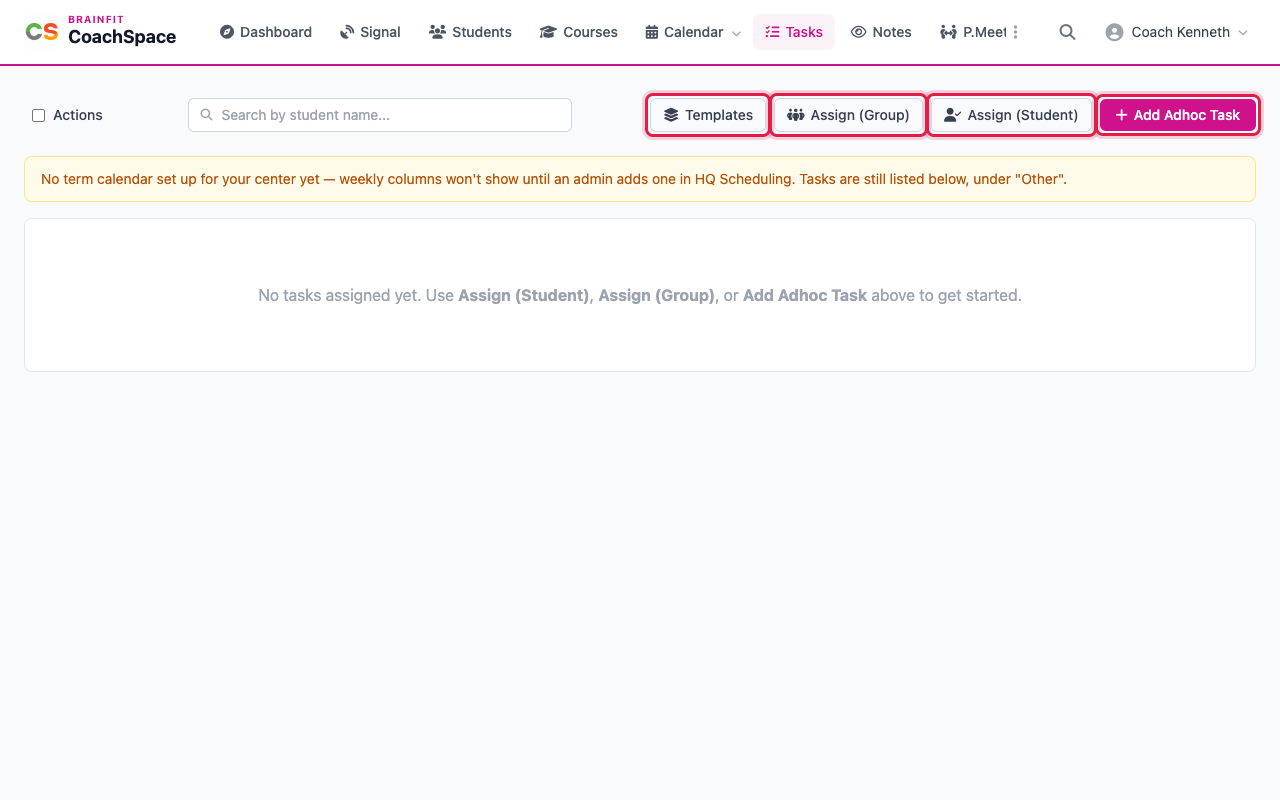
Click Tasks in the menu. The search box filters the list by student name, and the buttons on the right are Templates, Assign (Group), Assign (Student) and Add Adhoc Task.
2. Add a one-off task
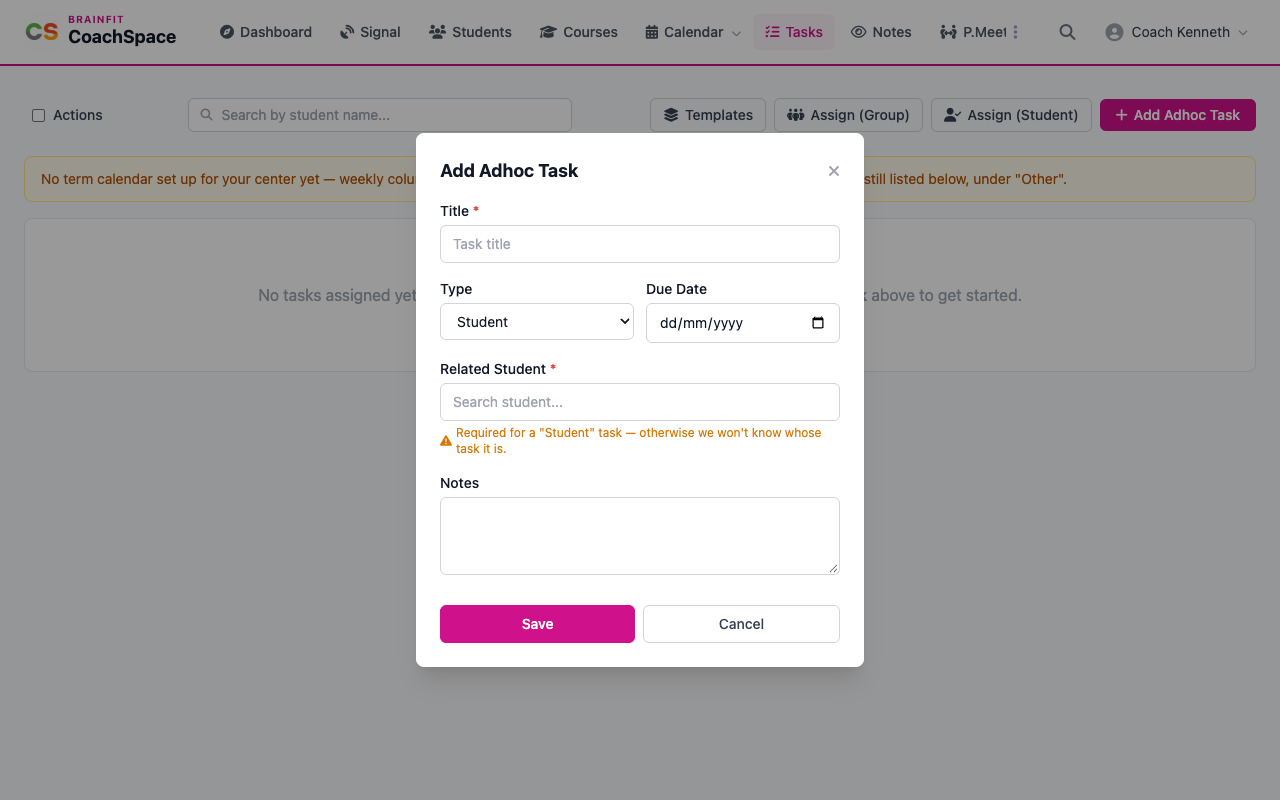
Click Add Adhoc Task. Give it a Title. Choose the Type: General, Student or Personal. A Student task needs a student, so search for the name and click the match. Add a due date and any notes, and click Save.
After you save, you land on that student's own task list. Tick the box in front of a task to mark it done, and tick it again to bring it back.
3. Work a task
On the Tasks page, click a task to open its details: the title, the student and the due date. Under Change Status, mark it In Progress while you work on it, and Done when you finish. Edit changes the title, notes or due date, and Delete Task removes it for good. A task that comes from a template also has a checklist, which you tick off here.
4. Task templates
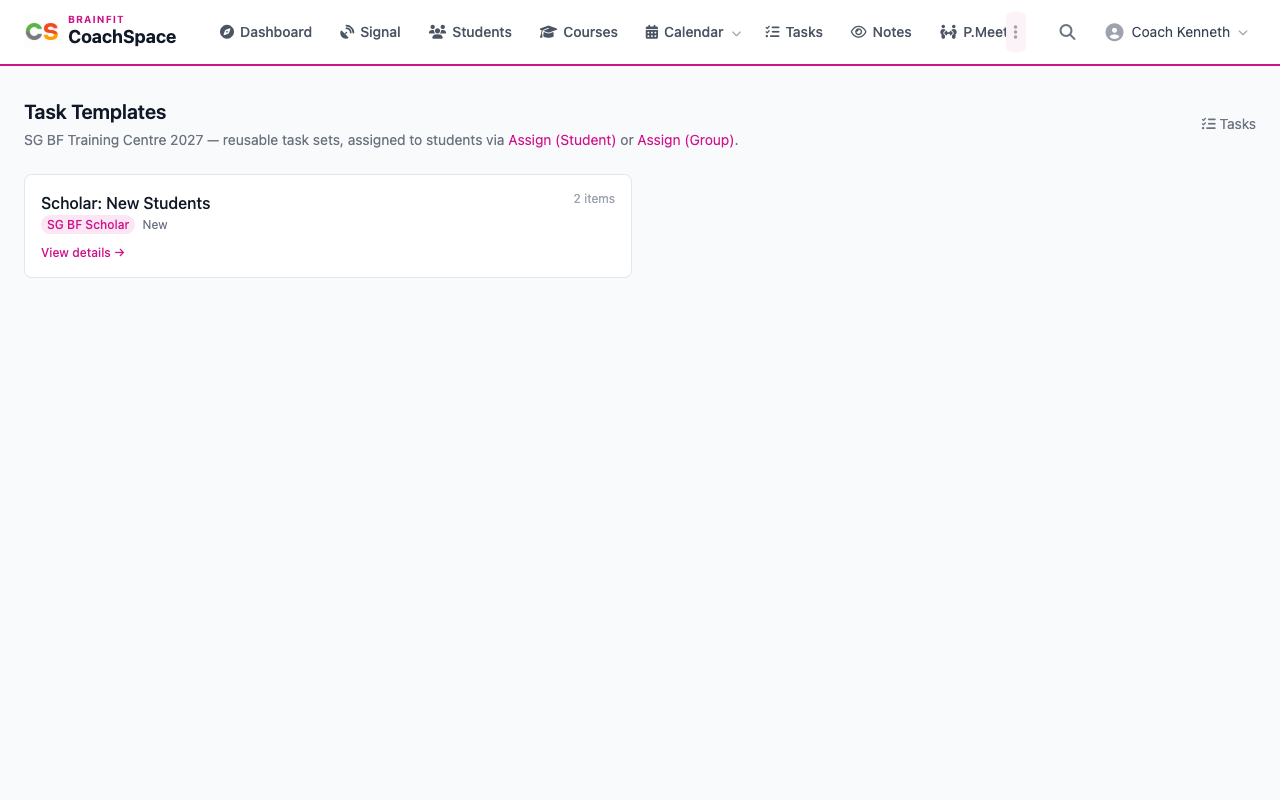
A template is a ready-made set of tasks, set up for your centre by an administrator. Click Templates to see them, with the program, whether it is for new or renewing students, and how many items it has.
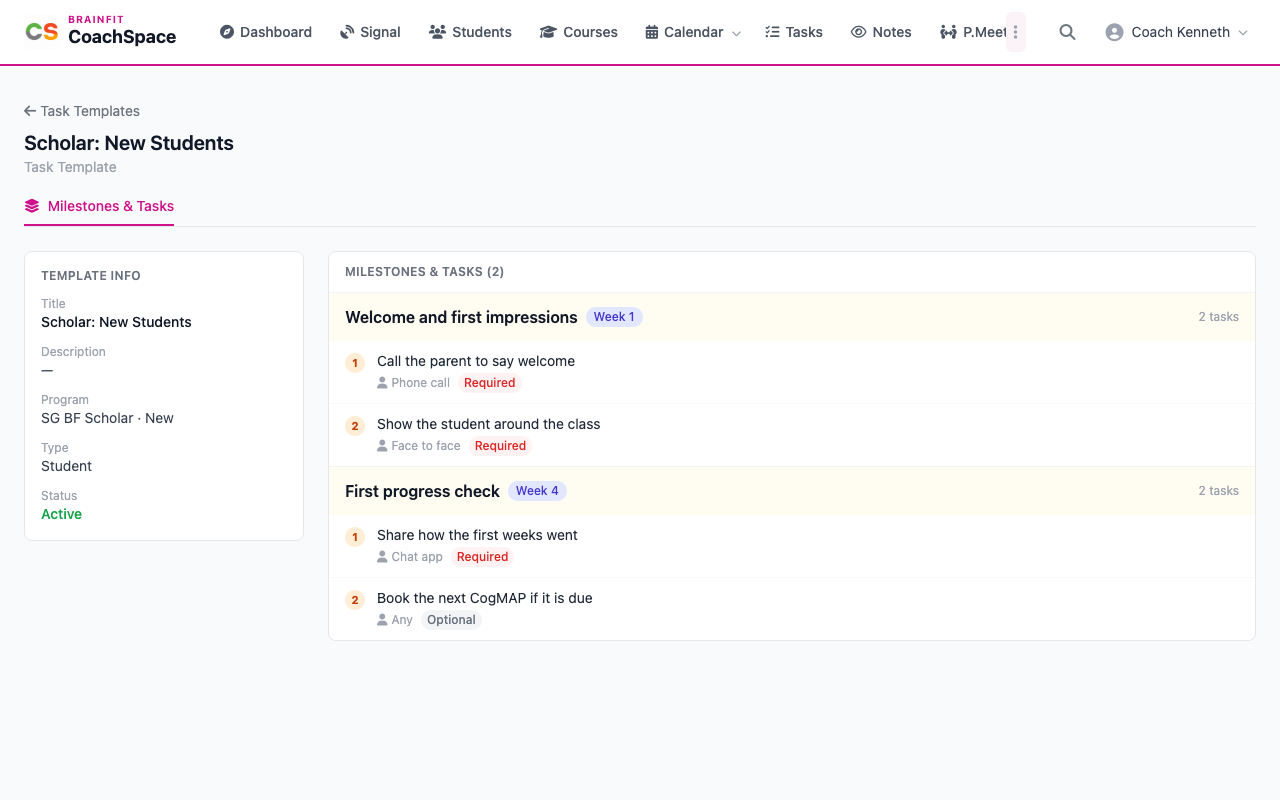
Click View details to read one. It is split into milestones, one for each week of the term. Each milestone has a checklist, and each line shows how to do it (face to face, phone call, chat, any) and whether it is required or optional.
5. Use a template
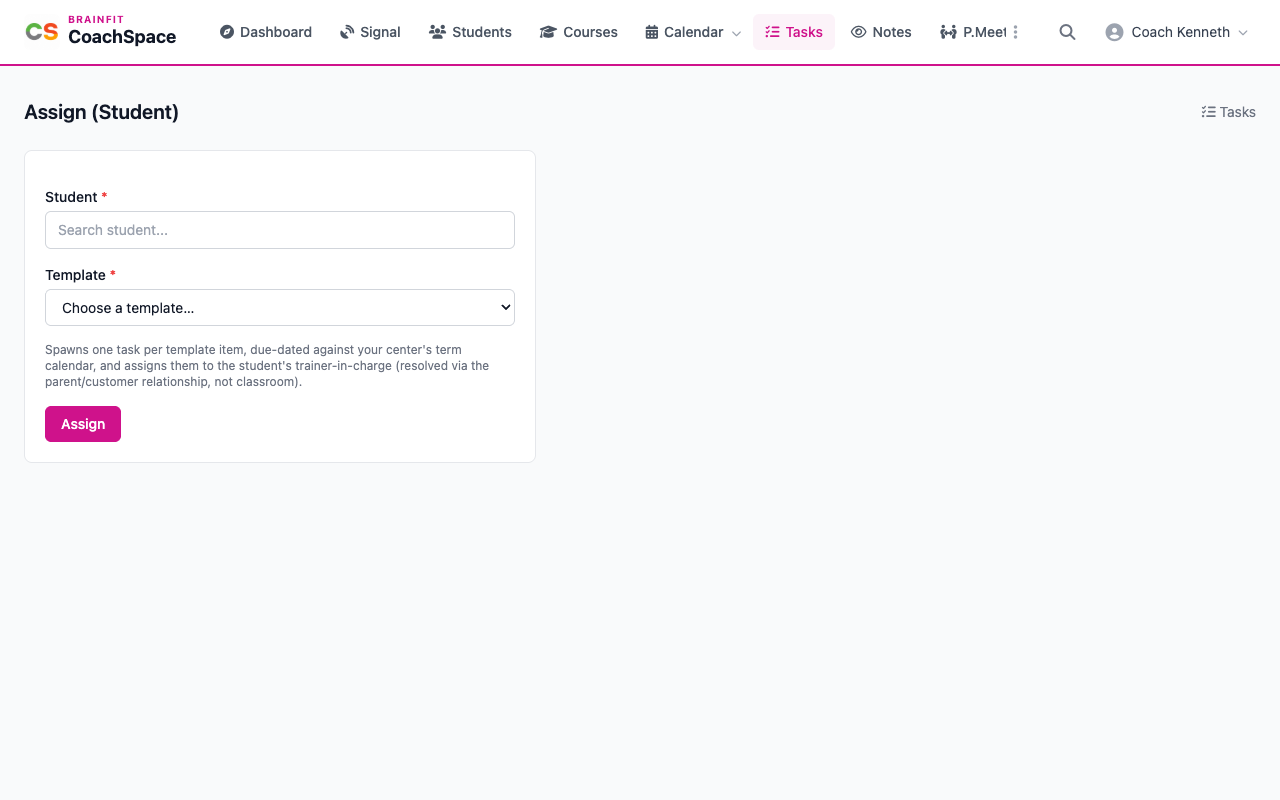
Click Assign (Student), pick the student and the template, and click Assign. CoachSpace creates one task for each item in the template, due on the right week of your term calendar. Assign (Group) does the same for a whole class: choose the class, then pick which students of its roster get the template.
Good to know: only a Super Admin can create or change a template. If your centre has no templates yet, ask your administrator. Weekly columns on the Tasks page need a term calendar, which an administrator sets up in HQ Scheduling.